
This article provides you with an overview of the different features available within your Dashboard, and their functionality and purpose. An email notification will be sent to you automatically through email once you are enrolled in a course.
Once logged in to our account you will automatically be directed to your learner’s dashboard.
Your dashboard is equipped with different features that will guide you and provide you with the best learning experience while doing your online training.
Here is a view of your dashboard:
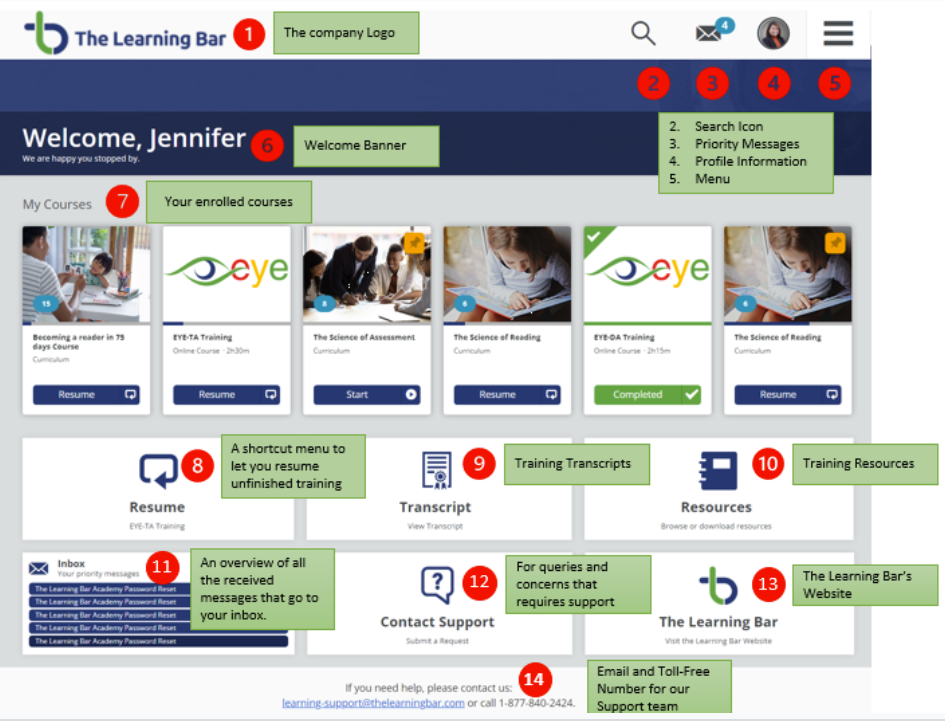
Your dashboard is equipped with different features that will guide and provide you with the best learning experience while doing your online training.
|
Features |
Description |
|
|---|---|---|
| 1 |
The company Logo |
The Learning Bar’s Logo. Clicking here at any point will always bring you back to the dashboard. |
| 2 |
Search Icon |
Type in keywords to search within your registered course(s). |
| 3 |
Priority Messages |
You can see and view system notifications and messages triggered by the administrator. |
| 4 |
Profile Information |
This feature allows you to add a picture and edit your profile information. You can also update your login password. |
| 5 |
Menu |
This is where you can find the shortcut function for your entire dashboard. Here, you can view your enrolled courses, transcript and even choose your preferred language (English/French). * Please note that at this time most courses are only available in English. |
| 6 |
Welcome Banner |
A welcome greeting with your name is shown on the banner page. |
| 7 |
Your enrolled courses |
All enrolled courses, and the status of each course, are all displayed here. |
| 8 |
Resume |
A shortcut menu to let your resume any unfinished training. |
| 9 |
Training Transcripts |
This button will bring you to a more detailed list of your course(s) progress. You can also the enrollment and the completion dates. |
| 10 |
Training Resources |
You may find any additional downloadable resources here. |
| 11 |
Inbox |
An overview of all the received messages that go to your inbox. |
| 12 |
Contact Support |
If you need assistance that requires support you can click this button to submit a support request. One of our support team agents will get back to you through the email provided. |
| 13 |
The Learning Bar's Website |
This button will direct you to our company website if you wish to know more and other services that we offer. |
| 14 |
Email and Toll-free number |
For immediate assistance, you can find our direct Email and Toll-free number for our support team. |
